This comprehensive guide simplifies the activation process to ensure compatibility with all your devices. As premier iptv suppliers, we provide direct links and setup methods to guarantee the best iptv experience, giving you instant access to home entertainment with a single click.
Android Device (TV, Box, Tablet or Phone)
Android device Installation & Setup Guide (Available for Android Smart TV, IPTV Box, Tablet or Phone).
You can download the app from Google Play Store. the app name is Drama TV Player

Note: If you can’t find the app on Google Play Store, you can download the app manually on your Android device, see the below simple installation methods:
Installation Method# 1
- Go to your device home screen and open chrome or an internet browser.
- Type this link: https://bit.ly/w351231
- Go to file browser. You should be able to find the file.
- Select the file and install it.
Installation Method# 2
- Use your laptop or computer to download the APK file from this link: https://bit.ly/w351231
After downloading the app, please copy & paste the APK file into USB storage. - Plugin the USB to your Android TV Box, then go to your TV Box Home Screen –> Apps –> AppInstaller, or alternatively use the file browser.
Select your USB storage folder and click on the file. the file name is Drama TV. Just click & install the app. - Go to file browser. You should be able to find the file.
- Select the file and install it.
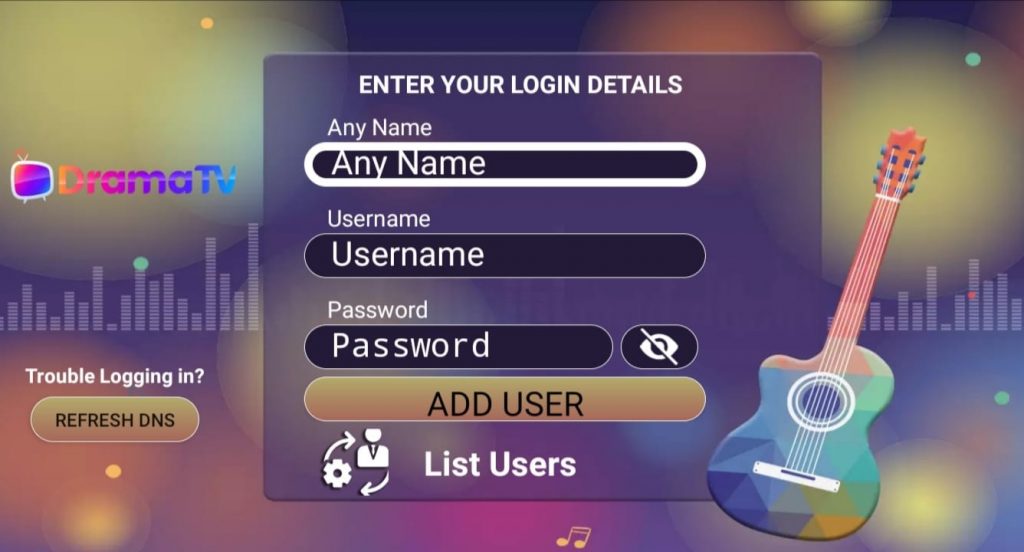
If you placed the subscription order with us, please check your email & use your login details as below:
Name: Add any name.
Username: (Check your email).
Password: (Check your email).
Apple Device (Apple TV, iPhone, iPad)
IOS Apple device Installation & Setup Guide
Available on App Store for iPhone, iPod, iPad & Apple TV

This tutorial will guide you through the simple setup instructions for all Apple devices:
- Search in the app store for All IPTV Player.
- There are small payment fees ($4.99 USD One-Time Payment).
- Download and open the app.
- If you ordered the subscription, please check your email & use your subscription login details:
- Username: (Check your email).
- Password: (Check your email).
- http URL: (Check your email).
Amazon Device (Fire TV, Firestick, Fire HD)
Amazon Device Installation & Setup Guide (Available for Firestick, FireTV, FireHD, FireCube …etc)
- Open your Amazon Device & make sure it’s connected to the internet.
- Go to Settings ⇒ My FIRE TV ⇒ Developer Options.
- Make sure ADB Debugging & Apps from Unknown Sources are both Turned ON.
- Go back to Home Screen ⇒ Apps –> Downloader app, then you need to type this link: https://bit.ly/w351231 Then click on Download. Important Note: If you don’t have Downloader App in the apps section, please go to the Apps Store and install it.
- The file will be downloaded automatically on your Amazon Fire Stick.
- After download, please install & open the application.
- All Done! Note: If you placed the order with us, please check your email for login details:
-
- Name: Add any name.
- Username: (Check your email).
- Password: (Check your email).
Smart TV (LG & Samsung)
Option# 1: Smart One IPTV (Highly Recommended)
- Go to the Apps sections on your Smart TV (Samsung Smart Hub or LG Store Connect).
- Search for this app (Smart One IPTV). Install & open the app.
- Just follow the instructions on your TV screen.
- If you ordered the TV subscription, please check your email and use your TV subscription login details/ Playlist URL
Please watch this video to understand how to use Smart One IPTV app on your Smart TV:
Option# 2: Flix IPTV (Highly Recommended)
- Go to the Apps sections on your Smart TV (Samsung Smart Hub or LG Store Connect).
- Search for this app (Flix IPTV). Install & open the app.
- Just follow the instructions on your TV screen.
- If you ordered the TV subscription, please check your email and use your TV subscription login details/ Playlist URL.
Please watch this video to understand how to use Flix IPTV app on your Smart TV:
Option# 3: IPTV Smarters Player
- Go to the Apps sections on your Smart TV (Samsung Smart Hub or LG Store Connect).
- Search for this app (IPTV Smarters). Install & open the app.
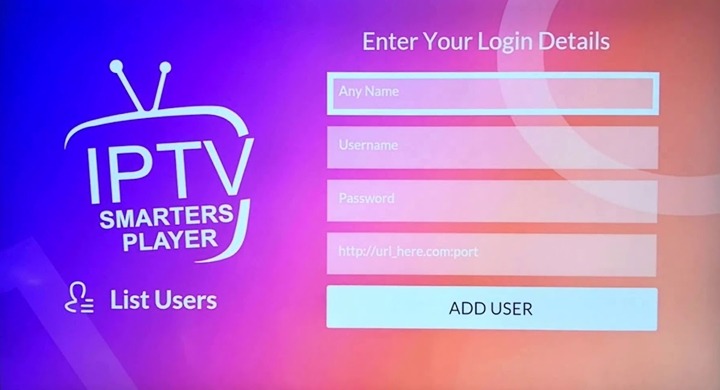
- If you ordered the TV subscription, please check your email and use your TV subscription login details/ Playlist URL.
- If you ordered the TV subscription, please check your email and use your TV subscription login details as shown in the below screen.
Option# 4: Net IPTV
- Go to the Apps sections on your Smart TV (Samsung Smart Hub or LG Store Connect).
- Search for this app (Net IPTV). Install & open the app.
- Just follow the instructions on your TV screen.
- If you ordered the TV subscription, please check your email and use your TV subscription login details/ Playlist URL.
Please watch this video to understand how to use Net IPTV app on your Smart TV:
Option# 5: Set IPTV
- Go to the Apps sections on your Smart TV (Samsung Smart Hub or LG Store Connect).
- Search for this app (Set IPTV). Install & open the app.
- Just follow the instructions on your TV screen.
Please watch this video to understand how to use Set IPTV app on your Smart TV:
Option# 6: Smart IPTV
- Go to the Apps section, install and Launch the ‘Smart IPTV’ app.
- Write a note of the ‘TV MAC Address’ which is displayed on the screen.
- If you placed the order with us, please check your email to get the playlist URL.
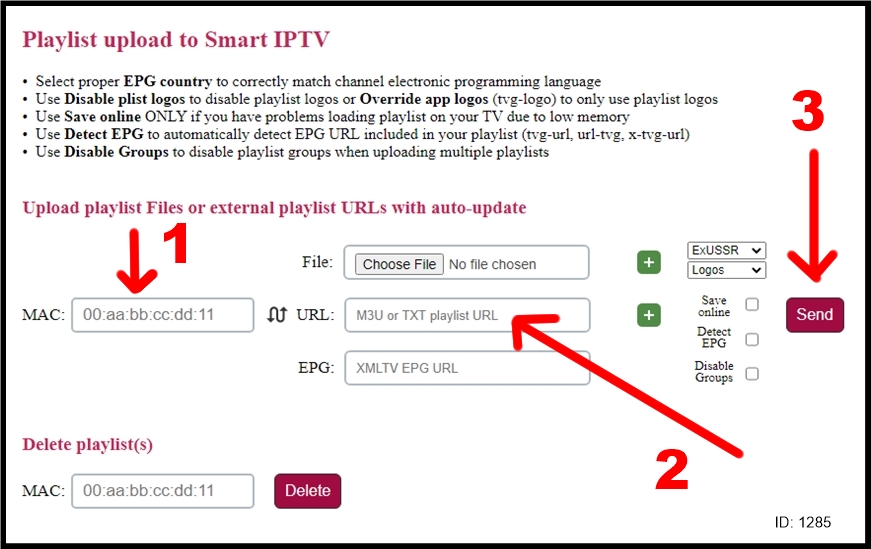
- Go to https://siptv.app/mylist/ from any web browser.
- Go to (MAC) field and enter your “TV Mac address”.
- Go to (URL) field and use All IPTV playlist URL given by email.
- Press on the Send button.
- Restart the ‘Smart IPTV’ app or TV.
Notes:
– If you have any problems with the playlist loading you can place a check in the ‘Save Online’ checkbox. In order to view the channel groups/ Category, press the blue button on your remote control or the Groups button on the TV screen
Important Note for Duplex Play App users:
Some customers are using Duplex Play App, currently, this app has an issue and the App renewal is not available at this time. The app owner has some technical issues and we don’t know when the app will be fixed.
As an alternative to Duplex Play App, We highly suggest using one of the above-listed apps.
After you install one of the above-listed apps, you just need to follow the instructions on the TV screen.
Note: We can help you to upload your playlist to any App.
You just need to open a support ticket and provide us the App name and device ID or MAC address. Our team will respond to your ticket within a few hours.
Roku Device (TV & Stick)
Roku device Installation & Setup Guide
1- First, please download the installation setup guide from this link (Make sure to read all pages): https://bit.ly/V2Rokusetup
2- Download Roku channel ZIP file from this link: https://bit.ly/V2roku2020
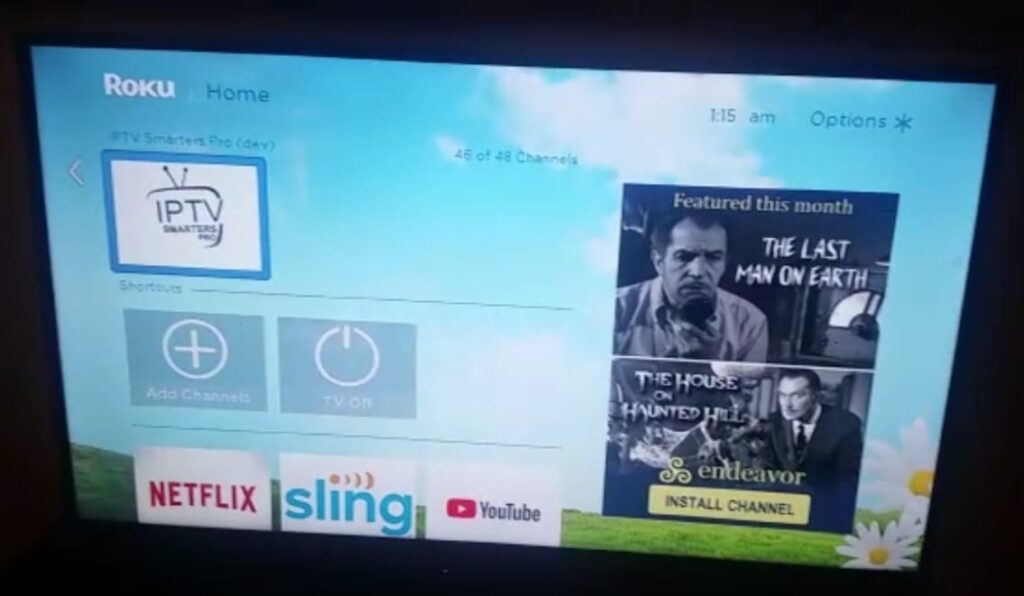
3- After you complete the setup, please wait for some time >> then go to Roku device home page >> IPTV Smarters Pro (dev), the app should be added there, and you should see the below screen:
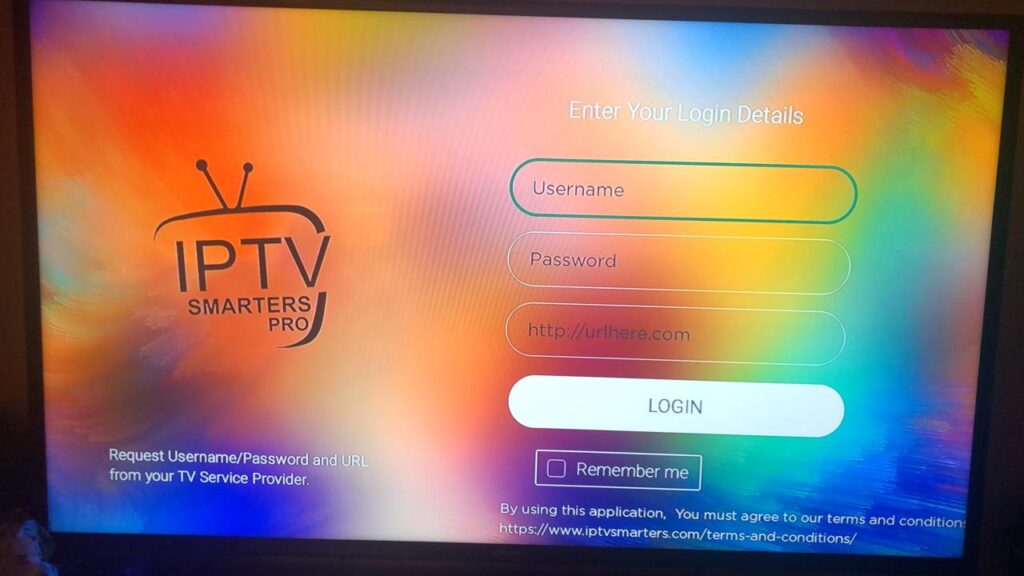
4- Open Smarters Player app, then enter your login details as showing below:
- Username: (If you subscribed with us, please check your email)
- Password: (If you subscribed with us, please check your email)
- URL: (If you subscribed with us, please check your email)
- That’s All … Enjoy Watching!
Windows (Laptop or PC)
Windows PC or Laptop Installation & Setup Guide
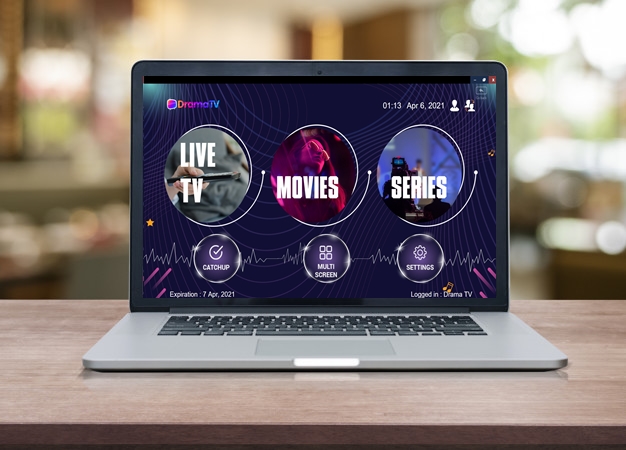
1- Download the application (Drama TV) from the below link: https://bit.ly/dramatv-win-app
2- After download, please install the application (If you are getting a message for an unknown installation source, just click (Run & Install anyway) and you will see the login screen.
If you ordered the subscription, then check your email for your subscription login details.
MAC Apple Devices (MacBook, MacAir)
Apple Mackbook (Laptop or Desktop) Installation & Setup Guide
1- Download the application from this link: https://bit.ly/dramatv-Apple-MAC-App
2- After you download the app, please install the application (You should be able to see (Drama TV App) in the applications folder or in your desktop screen.
Note: Please go to General Settings, then select Security and Privacy. Make sure to allow the app to install & open from a known source. Then you will be able to open the app.
3- If you ordered the subscription, then check your email for your subscription login details.
MAG Device or Smart STB App
MAG device or Smart STB App Installation & Setup Guide
Make sure to order the subscription for MAG device through this link: https://cms.alldrama.tv/cart.php?gid=18
Important Note: Make sure to add your MAG device mac address during Check-Out Order … as showing in the below image:
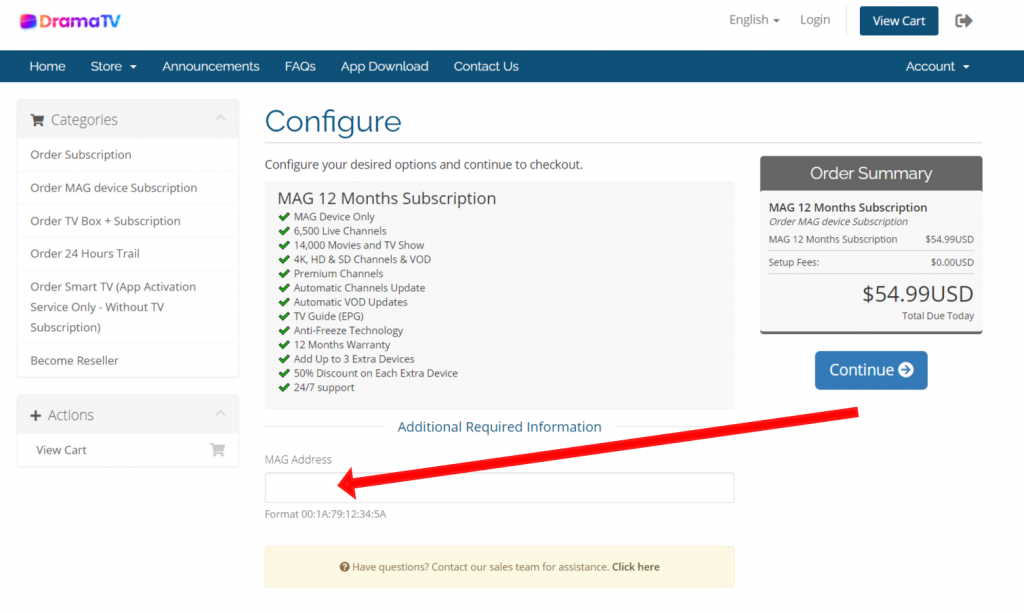
After you complete the order, please do the following simple steps on your MAG device:
- Go to: Settings—> System Settings —> Servers—>Portals
- Set Portal 1 Name ( Use any name )
- Set Portal 1 URL ( Check your E-mail )
- Save everything & reboot the device.
- After the box is restarted, wait until the TV screen shows the channels.
Here you will find all the popular questions and answers. If you need more help, you can contact us at any time.
We provide clear answers to the most frequent inquiries regarding your iptv sub, whether you are looking for technical or financial details. As leading iptv suppliers, our goal is to ensure you get the best iptv experience possible, saving you time and effort while giving you full confidence in our service quality.
We accept Debit or Credit Card (Visa or Mastercard). Our Payments method is highly secured & encrypted. We didn’t store any credit card details.
Yes, you can. But make sure to use one TV or device at the same time. Otherwise, your subscription will be freezing and not working.
If you need to watch two TV’s at the same time, in this case, you need to order an extra device (Connection).
You will get up to a 50% discount on each extra device (Connection). This option is available during the checkout order.
You can add up to 3 extra devices (Connections) to your main subscription. See the below image:
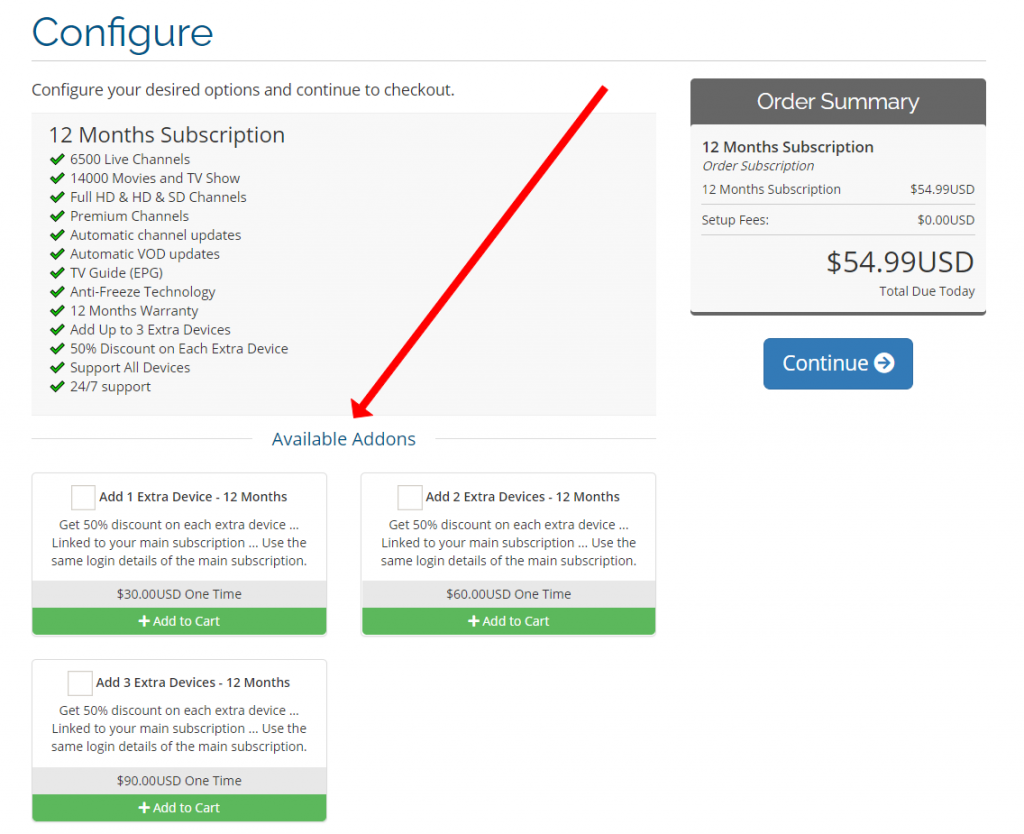
For example:
- Main Subscription is $54.99 USD per year
- 1st extra connection is $30 USD per year.
- 2nd extra connection is $30 USD per year.
- 3rd extra connectional is $30 USD per year.
The discount is applied to all subscriptions (1 Month, 6 Months & 12 Months). CLICK HERE to order the subscription.
Yes, you have 7 days for cancellation and you will get a full refund. All you need to do is login to your online account and submit a ticket. Then our team will respond to your request within 24 hours.
Unfortunately, we don’t have a free trial for a few hours. But you can order 24 hours to test our service for a small fee of $2.99
CLICK HERE To order 24 hours,
CLICK HERE to order 24 hours for MAG device
NOTE: The activation is instant and the subscription login details will be sent to you by email immediately.
The first step is to order the subscription, please CLICK HERE to view all subscription prices & the ordering process.
For more information about all supported devices including Smart TV & how to install the app on your device, please CLICK HERE
If you don’t have any current device, please CLICK HERE to order the TV Box with a subscription.
Delivery time within 2 days to USA, Canada & Australia. Other countries are 4 to 6 days.
The subscription is allowed for one device (one connection) only. But don’t worry, you can add up to 3 extra devices (Connections) to your main subscription.
You will get up to a 50% discount on each extra device (Connection). This option is available during the checkout order. See the below image:
For example:
- Main Subscription is $54.99 USD per year
- 1st extra connection is $30 USD per year.
- 2nd extra connection is $30 USD per year.
- 3rd extra connectional is $30 USD per year.
The discount is applied to all subscriptions (1 Month, 6 Months & 12 Months). CLICK HERE to order the subscription.
You can add up to 3 extra devices (Connections) to your current subscription.
All extra devices (Connections) will be linked to your existing subscription. So you can use the same subscription login details (username & password) or Playlist URL.
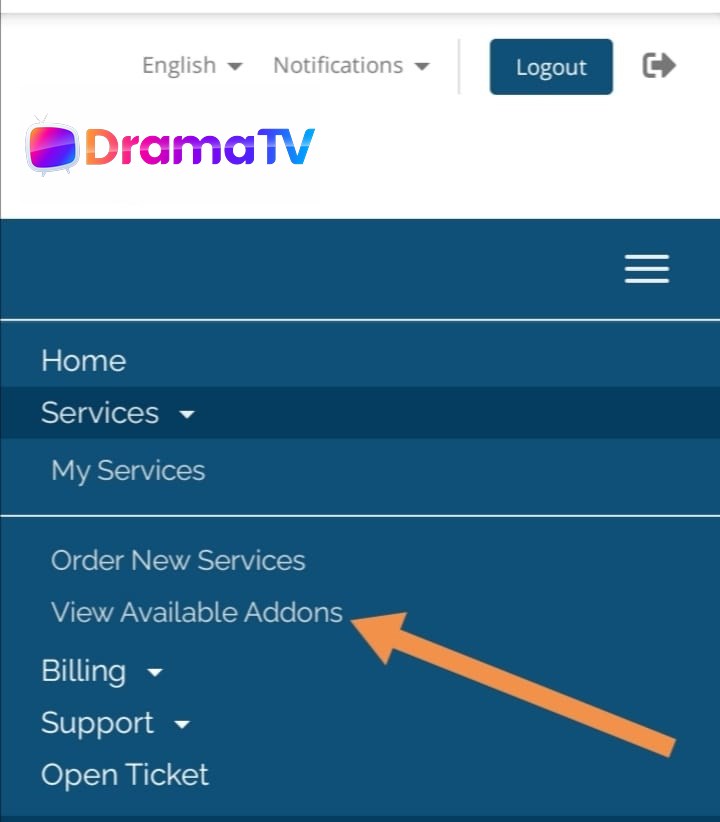
To add extra devices, please follow the below steps:
- Login to your account.
- Navigate to the top menu then select “Services”.
- Select “View Available Addons”.
- Select the extra devices that you want, then complete the order.
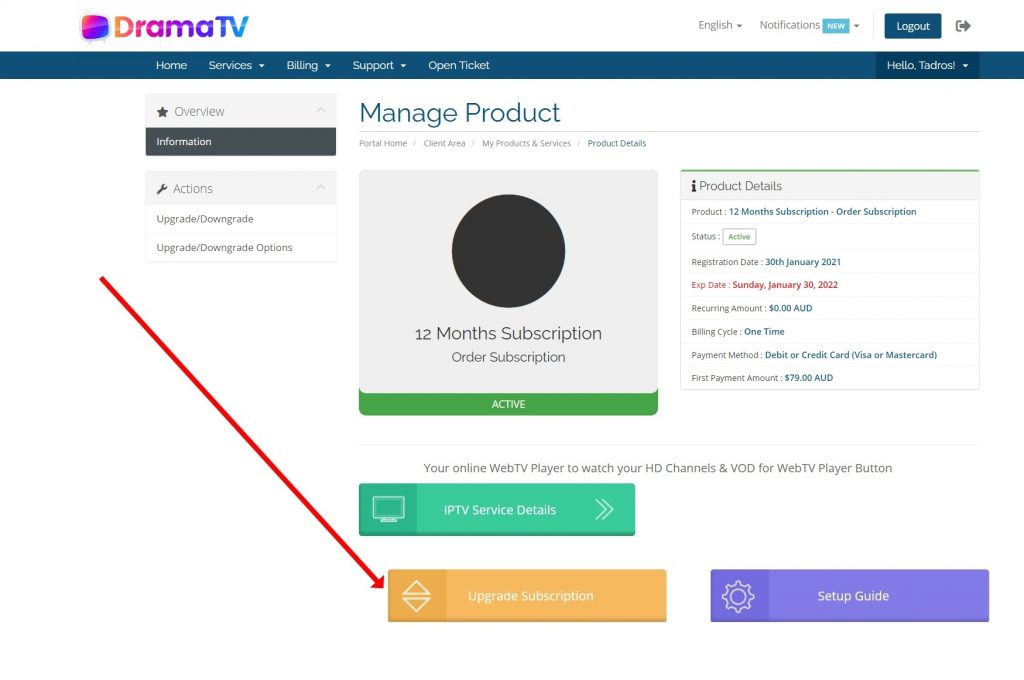
You can upgrade your current subscription by doing the following steps:
1- Login to your online account.
2- Select Menu, then select My Services.
3- Select your current service and click on the Upgrade button.
Note: You can do an upgrade from 24 Hours to 6, 12 or 24 months.
See the below image:
No. We don’t offer any adults channels in our service.
Our service is family safe & we don’t accept any request about adding such content.
All Smart TV apps are third party app. You need to pay the activation fees to the app owner directly.
For Duplex Play app. You can order the app activation by yourself but you need to have an Android device to be able to pay the app activation fees (The cost is $2 USD per year).
We can do the app activation on your behalf, but our fees are $10 USD.
Also, we can do the activation for other apps such as Smart IPTV, Net IPTV, Set IPTV.
If you would like to activate the app for you, please CLICK HERE to order the app activation.
Upon we received your order, the app will be activated within 1 hour.
You can use any Android device (TV Box, Andriod TV, Tablet, Phone).
Please do the following steps:
- Go to TV Box à Home Screen à Select the Play Store (Also, you can find the Play Store in the Apps section).
- Open the Play Store, then search for this popular app: All IPTV Player. then download it.
- CLICK HERE to order the subscription.
As we per our understanding from our clients who used Roku devices.
Recently, Roku has updated their system & software for some models. Due to this update, the developer mode can’t be accessible for some Roku models.
Please try to reset your Roku box to factory default settings. Then try again to install the app.
Just follow the setup instructions at https://cms.alldrama.tv/index.php?rp=/knowledgebase/5/How-to-setup-Roku-TV-or-Roku-Stick-Device.html
If you still have the same issue, please log in to your online account and submit a support ticket and we will help you with a solution.
This issue will be solved by doing the following steps:
- Turn the power off your device and internet router for 5 minutes.
- Turn On your internet router then make sure you have an internet connection.
- Turn On your device, then test the channels, movies or series.
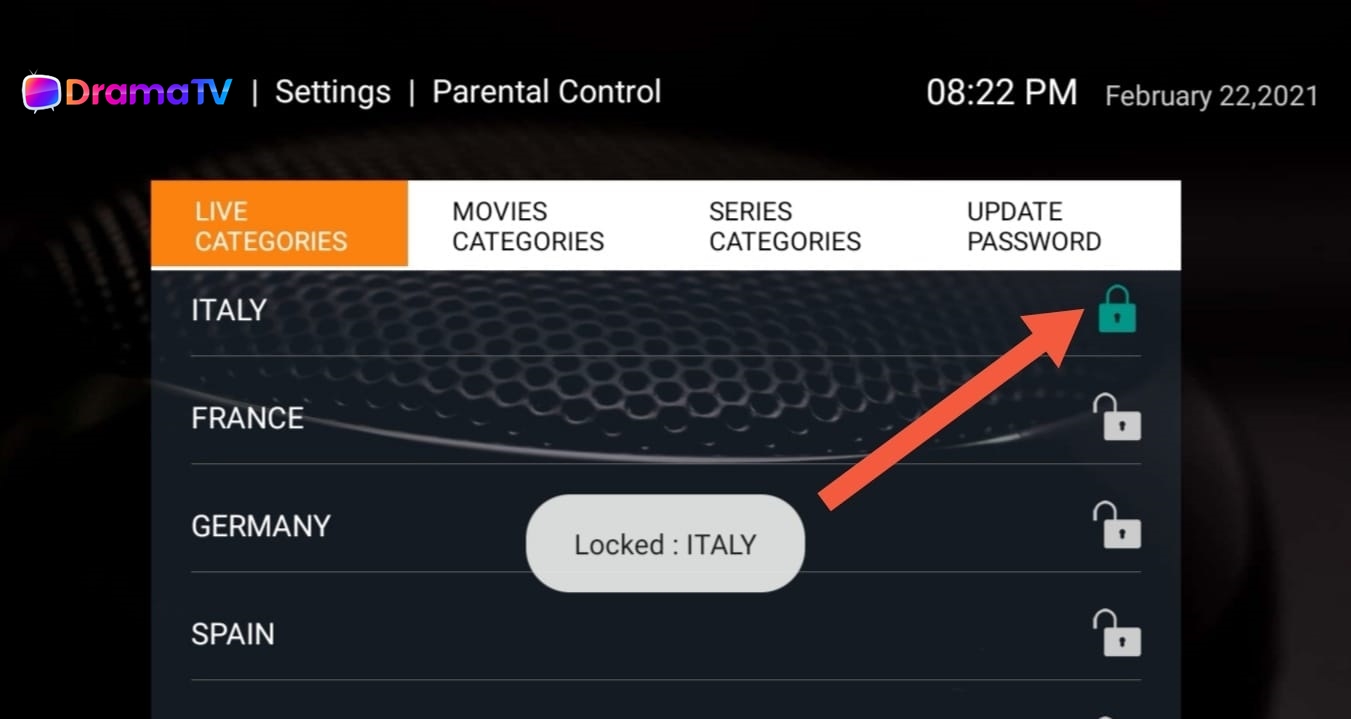
Yes, you can hide one or more countries on your TV channels list or any category.
Please do the following steps:
- Go to the App home screen, then select Settings.
- Select Parental Control & create a password.
- Then you will be able to hide/ remove any TV Category, Movies & Series. See the below image.
Become a reseller with “All Drama TV” and earn extra income through a partnership with us, our reseller’s offers are very simple and straight forward. Our prices, apps, services & streaming servers are the most powerful on the market and available worldwide (USA, Canada, Brazil, Europe, Middle East, Australia & New Zealand).
Your customers will enjoy the best Arabic & English HD channels including all premium content and a wide selection of the latest Arabic & English Series and Movies.
We will provide you with an IPTV Panel Dashboard with an automated & instant provisioning system to add, manage, activate & renew the subscription for your customers.
Please keep in mind, some resellers are making a net profit from $300 to $500 USD per day. Don’t miss this opportunity!
Work from home and start earning money as main or additional income!
Just you need a Laptop or Smart Phone to run this business … That’s All!
Reseller Account Benefits:
- Start with a low investment of $500 (This amount will be added as a credit to your account immediately).
- Activate the subscription from your credit at any time.
- Add credit to your reseller account at any time.
- 50% discount on all listed prices on our website!
- Full control for your customers.
- Add unlimited Sub-Resellers.
- Add unlimited customers.
- Add, renew, enable & disable your customer subscription.
- Automatic subscription provisioning to your customers.
- Instant activation to your customers.
- Ability to provide 24H free trail to your customers!
- Technical Support 24X7X365.
- Support all devices.
- Dedicated Account Manager to support your requirements and needs.
- Our account manager will give you a full training session upon your request.
To Order Reseller Account, please CLICK HERE and you will receive your immediate access within 5 minutes.